

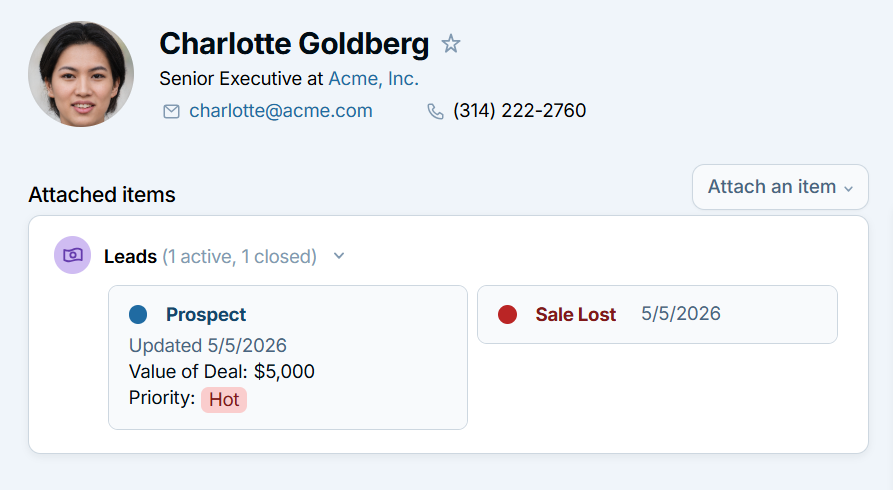
When you view a contact or company record, we'll show you any pipelines attached to that record. These pipeline badges will display the current status, as well as the most recent update date. You can also customize which pipeline fields display on your badges. Learn more about customizing your badge settings here:
- Mouse over "Settings" in the navigation bar and select “Customize your CRM” in the menu.
- Then, select the desired pipeline name. Note that it is possible to have more than one pipeline, and the pipeline name(s) you see may vary depending on your account customization.
- Under the Custom fields section, click to create a new custom pipeline field, or hover over an existing field to edit the settings.
- Under the Display settings, select “Display on [Name of pipeline] badges” if you’d like that field to appear on the pipeline badge. You’ll see this data from the contact record, as well as in pipeline updates in the history.
- By default, the field will not appear on closed badges, but you can unselect that option if you’d like fields to display on active and closed badges.
- Please note: if you choose to display a custom field on a badge, it will always display on the badge in the history/activity feed, despite the status.
Here is an example of a Lead badge that has the Value of Deal and Priority fields set to display on active badges only:
Can't find what you're looking for?