.png)
Our developers have just released a new feature: automations! Automations are one of the most flexible features the CRM offers. Automations allow you to put together a series of actions you want to take in the CRM. Instead of creating each of these items one by one, you can click the “run automation” button to complete all of the actions at once. Alternatively, you can have automations run automatically based on changes to a pipeline status. You can also have actions run automatically when a form is submitted.
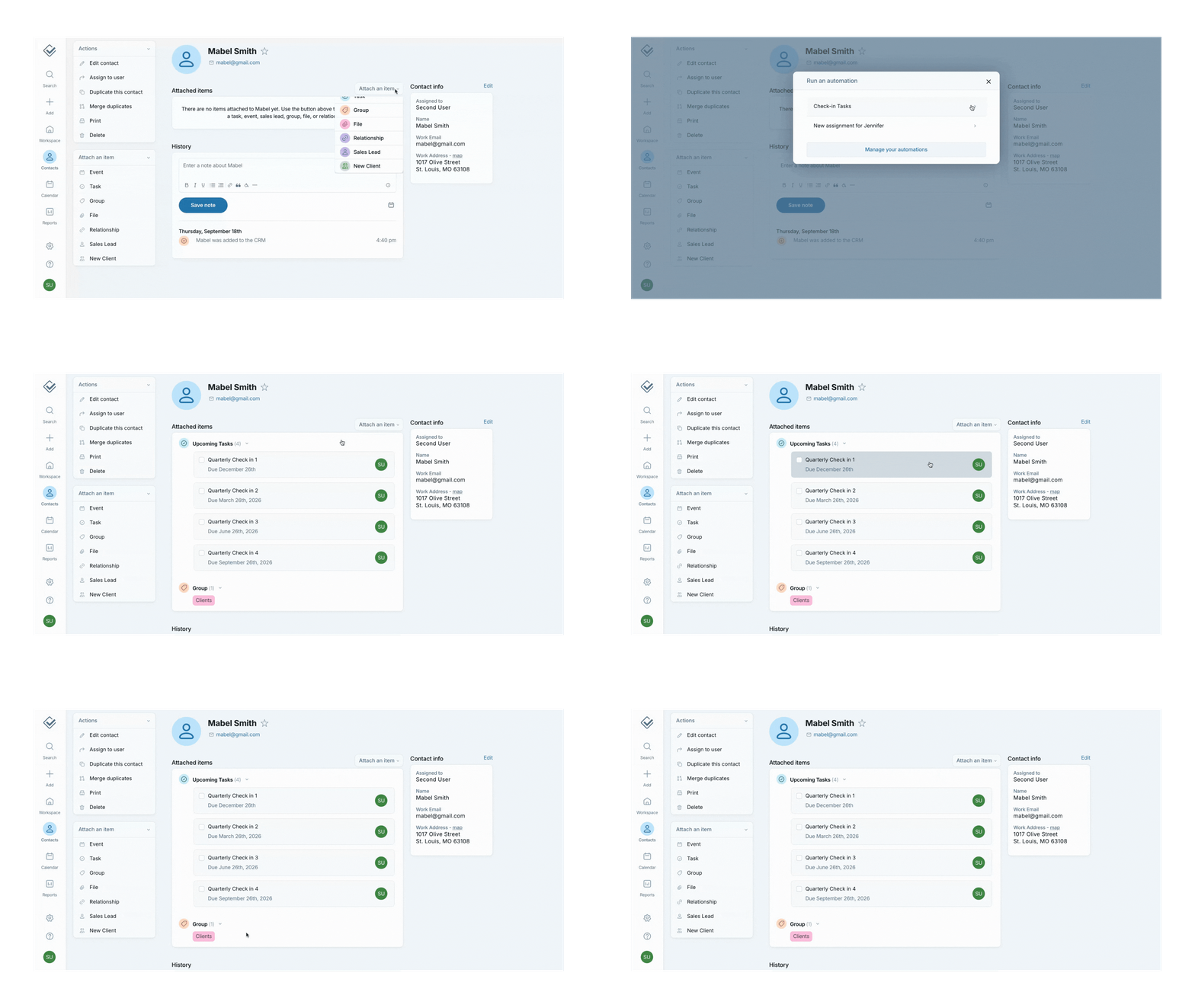
➡️Ready to create your first automation? Check out our video tutorial!
You can create automations that mix and match as many of the actions described below.
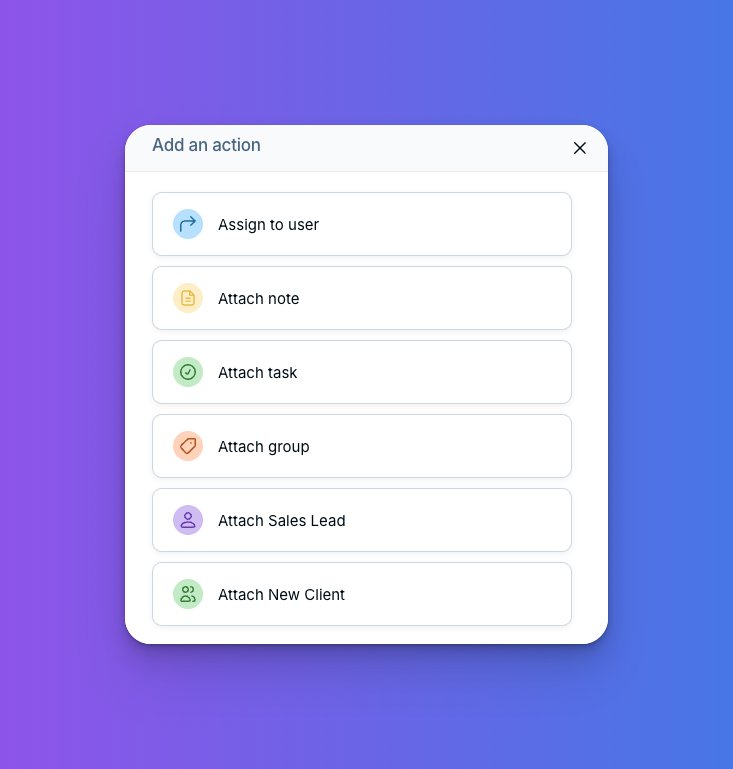
Create automations with a combination of the following options:
- ➡️Assign to user
- 📝Attach a note
- ✅Attach a task
- 🏷️Attach a group
- 👤Attach a pipeline
Automations are a great time-saving feature. We know that, as small business owners, your time is precious. Automations will let you make quicker work of the most tedious aspects of your business.
Automation ideas:
- ✅Create a series of tasks: As in my example in the GIF at the top of the page, a great way to use automations is to create an automation that features a series of tasks. In my example, click the automation button once to set up four quarterly check-ins with your clients.
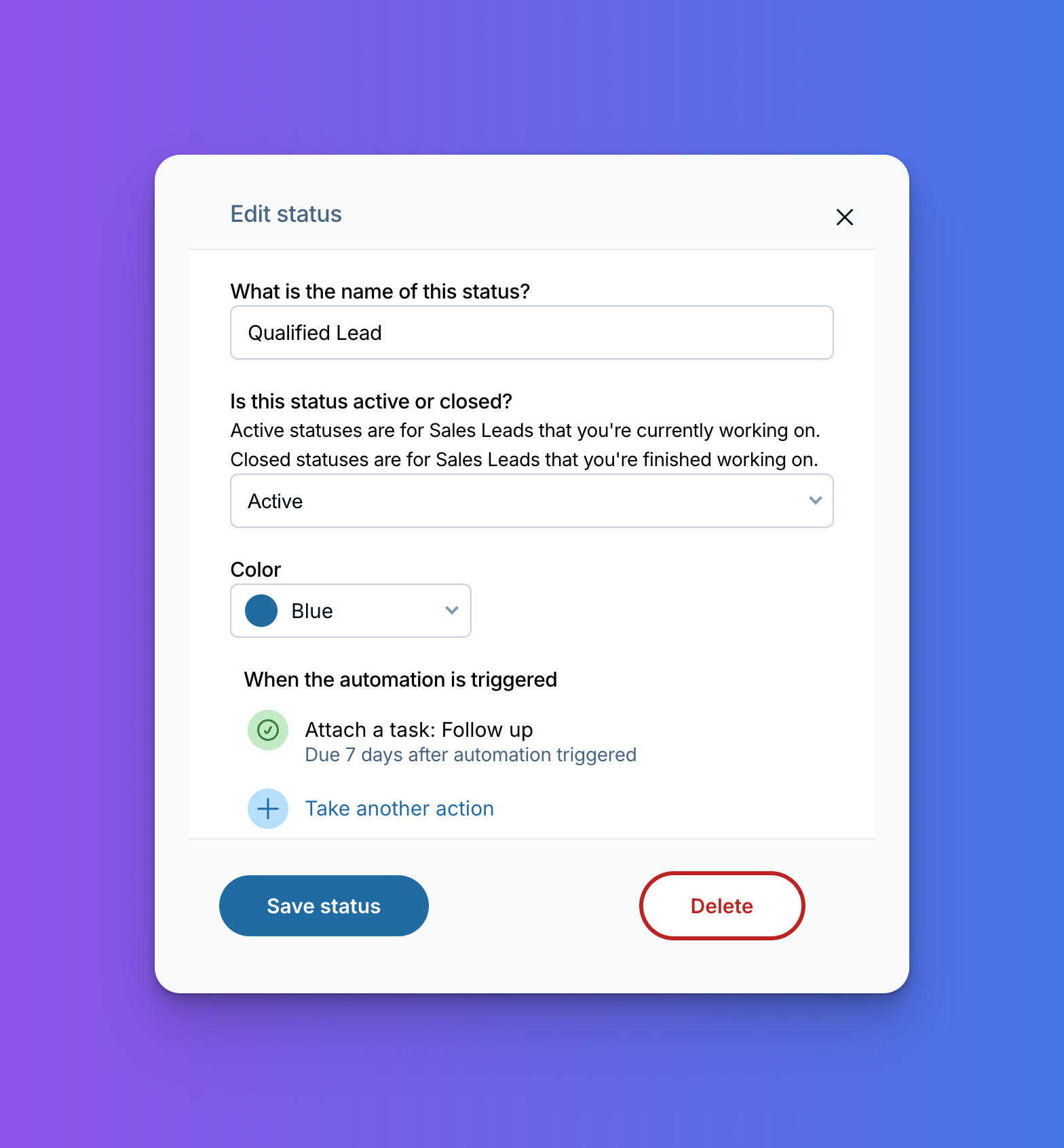
- 🪜Automatically create tasks after a pipeline status is completed: As soon as a particular pipeline status is reached, automatically create a task. For example, have a follow-up task created as soon as someone is moved into the "Qualified Lead" status.
- 📞Help your sales team stay on top of follow-up: Make an automation for each member of your sales team. When a new lead comes in, run an automation that creates a pipeline item, assigns the lead to this salesperson, and adds a task letting them know they should follow up within the next two days.
- 📦Easily segment your CRM: If you run multiple businesses from the CRM, create different automations for each business. Each automation can add your contact to the appropriate pipeline and group for the business they are associated with.
- 🗒️Use for those notes you leave again and again: Do you want a quicker way to leave a note like “Left Voicemail” that you might find yourself typing again and again? Create a “Voicemail” automation. When you click the automation, the “Left Voicemail” note will be automatically created. You can also add a task to that same automation that reminds you to try calling them again next week.
Learn more about how to create automations here. You can create your first automation on the automation settings page if you’d like to run it manually from a contact or company record.
If you’d prefer to have something happen automatically when a certain status is reached in a pipeline, set that up on the pipeline settings page under each individual pipeline. Or if you’d like something to happen automatically when a form is submitted, you’ll do that on the settings page for your form.
Give automations a try! Or send us an email if you want some help coming up with the best automations for your business. We’re happy to help.
Sign up to receive updates in your inbox