
Until now, importing a spreadsheet into Less Annoying CRM created contacts and companies. Now your imports can go one step further: you can import straight into your pipelines! This has been one of your most requested features, and we're excited to say it's here.
That means the stage of each deal, a project's start date, a policy's renewal, or a donor's last gift can all come in with the contact, in one import. It's handy whether you're moving in from another system (or a trusty spreadsheet) or adding a new batch of leads, jobs, or projects.
We want bringing your work into the CRM to be one of the easiest things you do, and this is a big step in that direction.
What it does
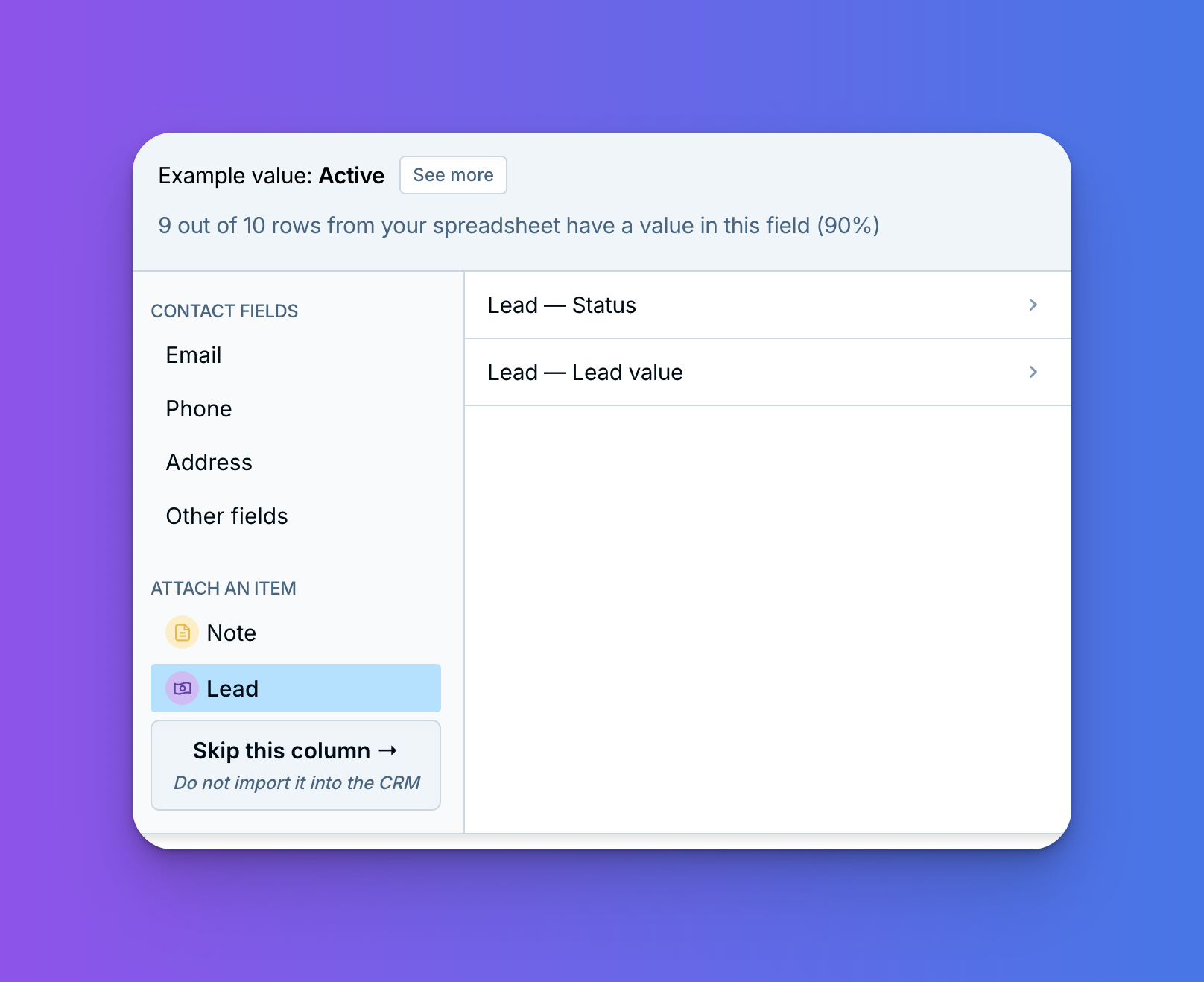
When you import a spreadsheet, you can now match columns to your pipelines, not just to contact and company fields. Each row comes in as a contact (or company) with a pipeline item already attached, sitting in the right status with its details filled in. Open any imported contact and you'll see the pipeline under Attached items, ready to go.
- Statuses: match a column to a pipeline's status, and each row lands in the right stage.
- Pipeline fields: fill in your pipeline's custom fields too, like a deal value, a close date, or a dropdown.
- More than one pipeline: one spreadsheet can fill several pipelines at once.
- Contacts, companies, or both: you choose where each pipeline item goes. (If you pick both, the contact and the company each get their own pipeline item.)
- Creates new records: Pipeline items are added to the new contacts and companies your import creates, not to records already in your CRM.
How to import into a pipeline
- Before you import, customize your pipeline so it has all the statuses and fields you'll need. (Here's how to customize a pipeline.)
- Start a new import like you normally would. (Here's our guide to importing if you'd like a refresher.)
- When you get to Map the remaining fields, select your status column. Under Attach an item, choose your pipeline, then its status.
- In the window that opens, match each value from your spreadsheet to one of your statuses, then select Save field mapping.
- Match any other pipeline columns, like a deal value, the same way.
- In the Record column, choose whether each pipeline item goes on the contact, the company, or both.
- Select Finalize the import.
Thank you!
Thanks to everyone who asked for this one. We built it because of you, and we can't wait to hear what you bring in! While you're at it, you can now import notes too. Here's how that works. Email us at help@lessannoyingcrm.com with questions or feedback.
Sign up to receive updates in your inbox