.png)
Task Templates: Set Up Your Repeat Tasks Once
Think about the tasks you create most often. Not the one-off to-dos, but the ones you type out the same way every time: the call you return after a voicemail. The info packet you promise someone on the phone. The follow-up a couple days after meeting someone at an event.
You've probably typed some version of the same task dozens of times. Task templates are how you stop.
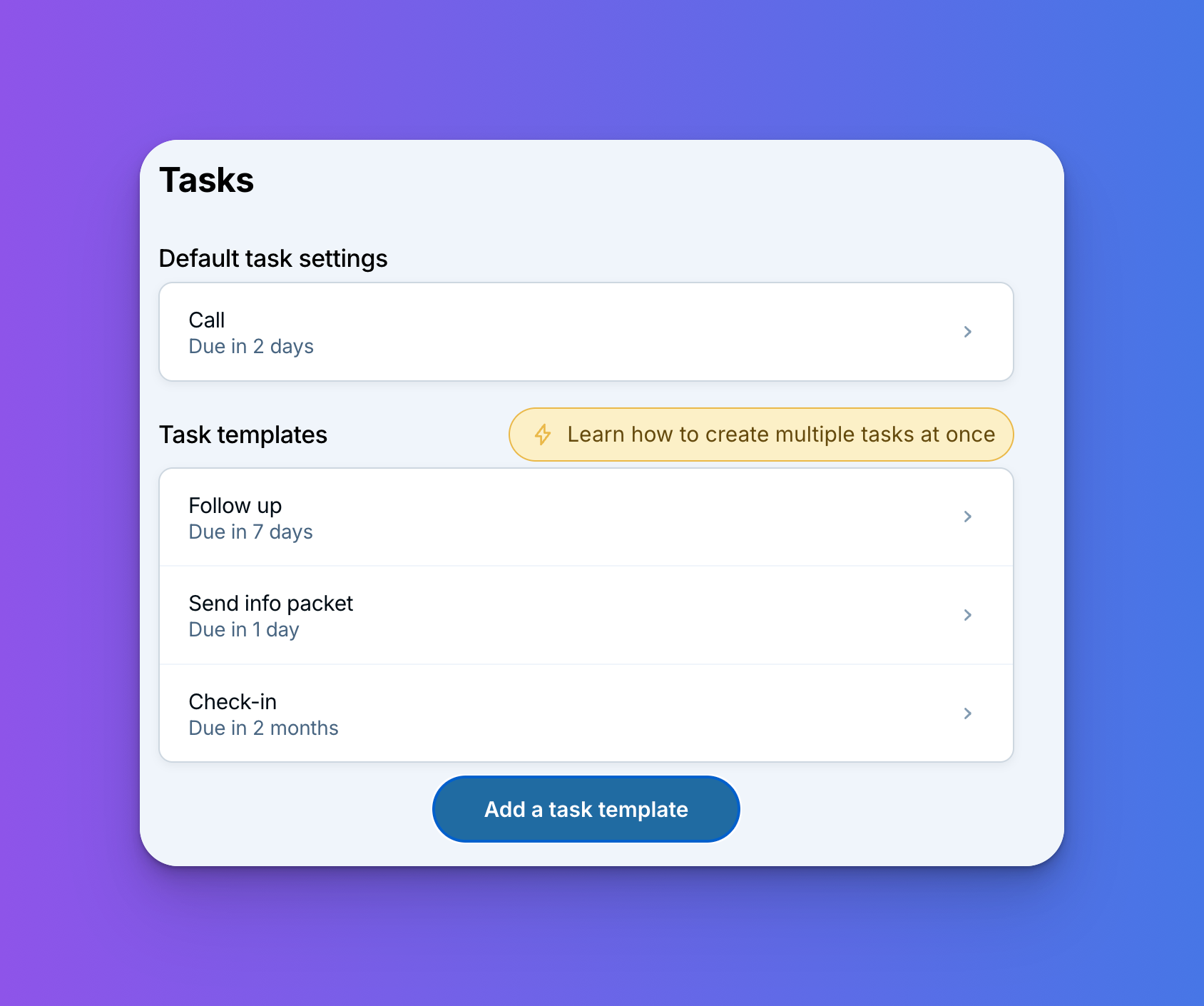
A task template saves the whole task once (the name, the calendar it goes on, the due date, even who it's assigned to) so you can apply it from a dropdown whenever you need it.
How to set one up
- Mouse over Settings and select Tasks.
- Select “Add a task template.”
- Give the task a name, and pick which calendar it should go on if you use more than one.
- Set the due date. Here's the part worth pausing on: choose a relative due date (“due 3 days from today”) rather than an exact one. That way the template is always right, whether you use it tomorrow or in November.
- If the task usually belongs to someone else on your team, assign it to them, and add a description if the task needs one. Save!
From then on, when you create a new task, your templates are sitting in a dropdown. Pick one and the whole task fills itself in.
The default task: your most common to-do, pre-written
Templates have a sibling worth knowing about: the default task. On the same settings page, you can set a default that applies to every new task you create: name, calendar, and due date. If most of your tasks are some version of “follow up, due in a few days,” setting that as your default saves time.
Ideas for what to template
The best templates are tasks you create the same way at least once a week:
- “Return this call,” due today. Every voicemail becomes a task in a couple of clicks, and nothing gets lost on a sticky note.
- “Event follow-up,” due 2 days from now. Back from a conference with a stack of new contacts? Apply the same template to each one as you enter them.
- “Send info packet,” due 2 days from now. Created mid-phone-call, the moment someone says “sure, send me something.”
Templates or automations?
One more thing worth knowing: task templates are for single tasks you create one at a time, whenever they come up. If what you actually want is a multi-step process, a series of tasks that should all happen together (like the three onboarding tasks you create for every new client), that's a job for our automations feature. Automations can kick off when a deal reaches a step in your pipeline, when a form comes in, or manually whenever you say go.
A good rule of thumb: if it's one task, use a template. If it's a series of steps that always happen together, build an automation. Templates save you typing; automations save you remembering. Plenty of people end up using both.
A couple of tips
Use relative due dates. A template with an exact date is only right once. “Due 3 days from now” is right every time. Save exact dates for things that really do happen on one specific day.
Keep template names short. You'll be picking them out of a dropdown, so make them easy to spot at a glance. Anything longer belongs in the description.
Change your templates whenever you like. Edits apply to new tasks going forward. The tasks already on your calendar stay just as they are.
Like default field values, this is a set-it-once feature: a minute of setup now, and every repeat task after that is a couple of clicks. The less your CRM asks you to remember, the more reliably the work gets done.
Sign up to receive updates in your inbox