.png)
This is one of six new updates, all based on your requests. See them all here: Product Roundup: 6 New Features from Cupholder Week!
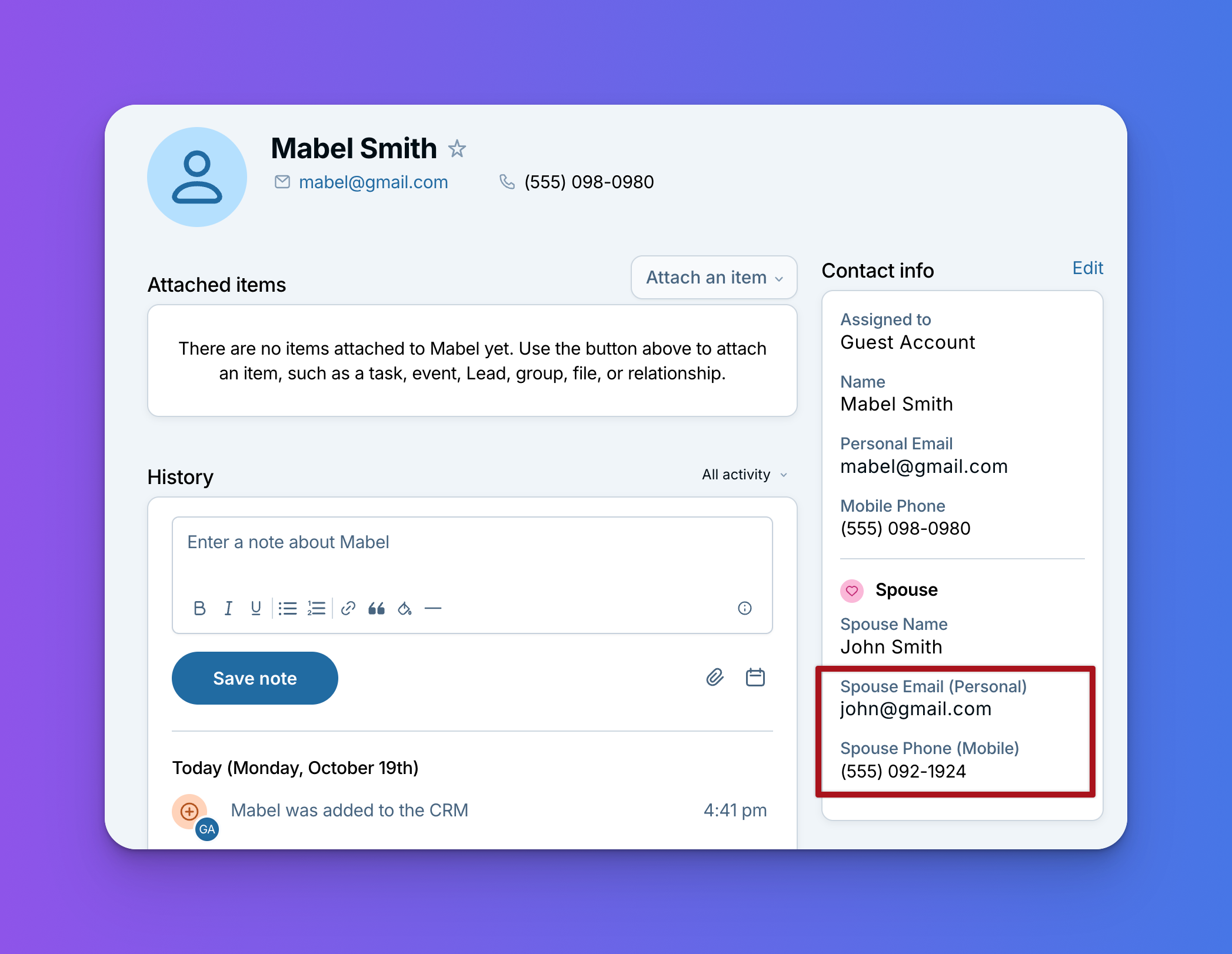
Sometimes one email address or phone number field just isn't enough, and lots of you have told us so! Maybe you want a separate field for a client's spouse's phone number, a billing email, an emergency contact number, or the address of a property you're helping a client buy or sell. Now you can create custom Email, Phone, Address, and Website fields and set them up however works best for you.
What it does
Every contact and company already comes with one Email, Phone, Address, and Website field. Now you can add more of your own, each with its own name, like "Spouse phone" or "Billing email."
When you create a custom field, you'll see four new choices in the Field type menu: Email, Phone, Address, and Website. Depending on which one you pick, you'll see a couple of settings:
- Allow multiple: Turn this on if a contact might have more than one entry. It starts off, so the field holds just one unless you change it. For example, a "Billing email" field probably only needs one address.
- Types (Email, Phone, and Address fields): Turn this on to give each entry a label, like Work, Personal, or Other. You can add your own options and drag and drop them into whatever order you'd like.
Turn both on, and one field can hold several entries, each with its own label. For example, a Spouse phone field with both settings on could hold your client's spouse's cell number labeled "Mobile" and their office number labeled "Work," all in one place.
A few ideas for how you might use them:
- A Spouse phone or Spouse email field so you can reach a client's husband or wife, with room for their work and personal numbers or addresses
- A Billing email field so invoices always go to the right place
- An Emergency contact phone field
- A Property address field for the home a client is buying or selling
- A Booking page website field for the link a client uses to schedule with you
Even better with field sections
These custom fields work great with custom field sections. A field section groups related fields together under their own heading on a contact or company record, so all the details about one thing live in one spot.
For example, you could create a Spouse section with a Spouse name field, a Spouse phone field, and a Spouse email field. With custom Email and Phone fields, each piece of info gets the field that fits it best, so the phone number goes in a Phone field and the email address goes in an Email field.
You can also set a section to collapse if all fields are empty. That way your Spouse section only shows up on contacts where you've filled it in, and stays out of the way everywhere else.
To create a section, go to the same page where you create your fields and click Create a new field section. Give it a name, choose how it displays, then drag your fields into it.
A fresh look for creating fields
While we were at it, we gave the Create field window a small refresh. Field type now comes first, followed by the field name, and on/off settings like Required are now simple toggles.
How to find it
Go to Settings, then Customize your CRM (under Admin settings), and choose Contacts or Companies. Click Create new custom field, then choose Email, Phone, Address, or Website from the Field type menu. Our help article on creating custom contact fields walks through the rest.
Want to change the labels on the Email, Phone, and Address fields you already have instead? See Product Update: Customize Phone, Email, and Address Types.
Need a hand setting things up?
Thanks to everyone who asked for more ways to store contact info! If you'd like help planning out your custom fields and sections, our CRM coaches are happy to talk it through with you. Just email help@lessannoyingcrm.com.
Sign up to receive updates in your inbox