.png)
Some fields in your CRM get a different answer every time: a contact's name, their email, their background information. But others get the same answer over and over. The same lead source. The same preferred contact method. The same service package. If you've ever typed the same value into the same field ten times in a week, this feature is for you.
Default field values let you pick the answer a field starts with. Set it once, and every new record comes pre-filled. You only touch the field when the answer is different, which for most fields is the exception, not the rule.
One thing to know up front: this works with custom fields, meaning the fields you've created yourself. Built-in fields like name, address, and email work the way they always have.
How to set one up
- Head to your Settings and click Customize your CRM
- Choose either contacts, companies, or a pipeline, depending on where your field lives.
- Create a new field or edit an existing custom field.
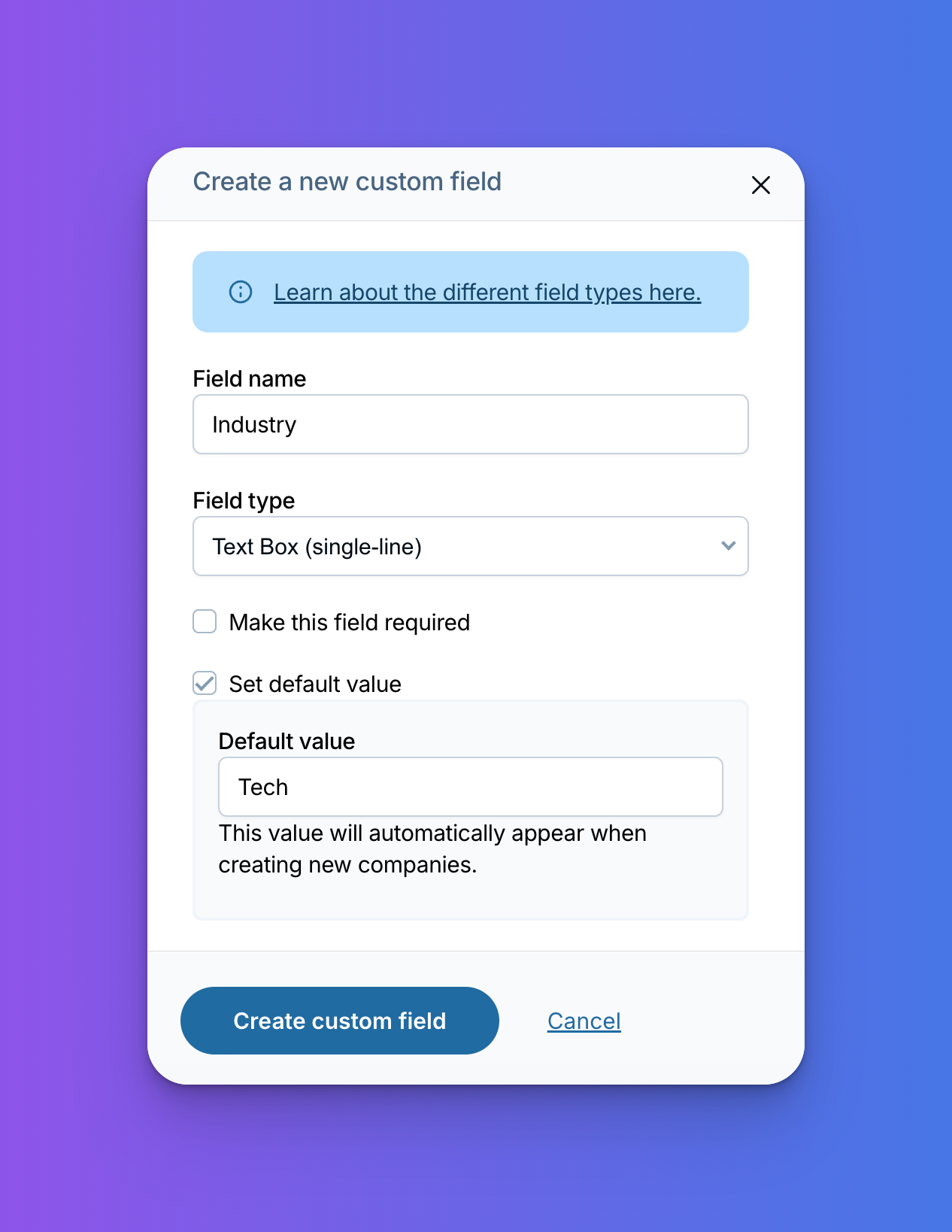
- Tick the box that says “Set default value” and enter or select the value you want the field to start with.
- Save, and you're done. New records will start with your default filled in.
That's the whole process. It works for nearly every field type: text, numbers, currency, dropdowns, checkbox lists, radio lists, and dates. (File fields and contact link fields are the only two that can't have defaults.)
Ideas for what to default
The best defaults are answers that are true 80% of the time. A few examples by field type:
- Dropdowns: If most of your leads come from referrals, default your Lead Source field to “Referral” and change it only for the occasional trade show or web lead.
- Text fields: Industry is a classic. If you work with too many industries to list in a dropdown but one shows up far more than the rest, default an Industry field to your most common one and type over it for the outliers.
- Numbers and currency: If your standard engagement starts at the same price, default the Quote Amount on your pipeline so every new deal starts with your typical number.
- Checkbox lists: If nearly every client gets your core service, default that box to checked and add the extras per client.
- Dates: Running an event or a seasonal campaign? Default a date field to the big day while it's coming up, so you're not retyping it all month.
- Pipeline fields: Defaults work here too, so new leads or deals can start with your most common deal type or priority level already set.
A couple of tips
Only set a default when there's a clear favorite. If a field could go either way, leave it blank. That way an empty field still tells you something: you haven't found out the answer yet.
Check in on your defaults once in a while. Maybe most of your leads used to come from referrals, but these days they come from your website. When things change, update the default so your records stay accurate.
The real payoff is records you can trust. When a field fills itself in, it never gets left empty. So months from now, when you want to know where your customers actually come from, the answer will be right there waiting for you.
Setting up your first default takes under a minute. Your future self, ten contacts from now, will thank you.
Sign up to receive updates in your inbox